Webcam and microphone access
Last updated on • Disponible en Français
Recruiters may ask you to turn on your webcam and/or audio device either for webcam proctoring (to prevent cheating and ensure the integrity of the assessment process) or to answer an audio/video question.
- For webcam proctoring, occasional snapshots will be taken throughout the test. These snapshots will only capture your image and will not record any video or audio. They are solely for verification purposes.
- For audio/video questions, you’ll use your computer’s webcam and/or microphone to record a brief video or audio clip to respond to a question prompt.
Tips before starting the test
- Prepare your environment: Choose a well-lit, quiet, and private space for taking the test. Ensure that your webcam is positioned correctly and that your face is clearly visible. Ensure minimal background noise if answering an audio/video question.
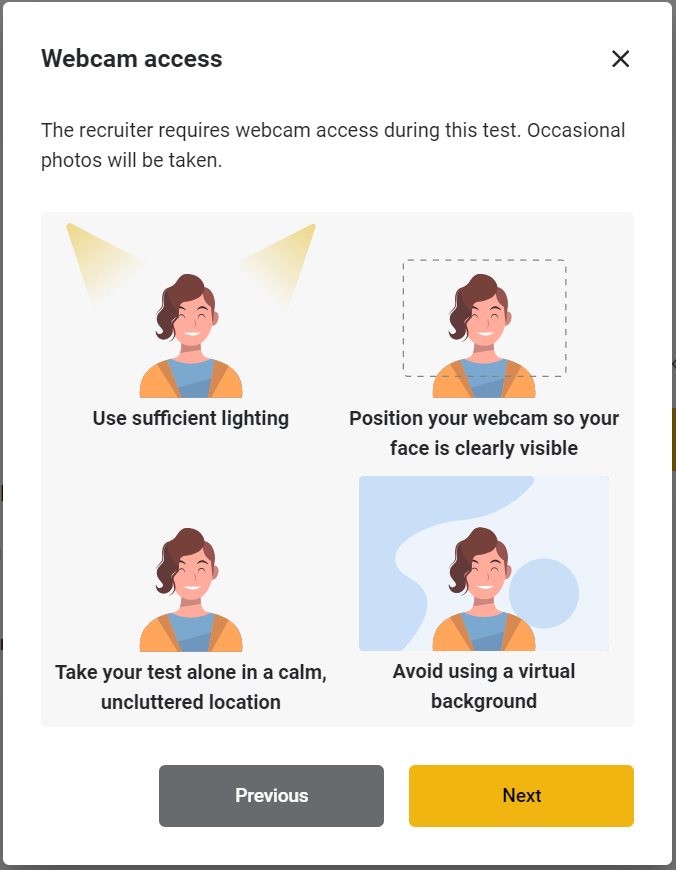
- Test your webcam and/or audio device: Before starting the assessment, perform a quick test of your webcam and/or audio device to ensure that it is functioning properly. You can use any video conferencing application or a built-in recording app on your device. You’ll also be able to do a camera check before you start the test.
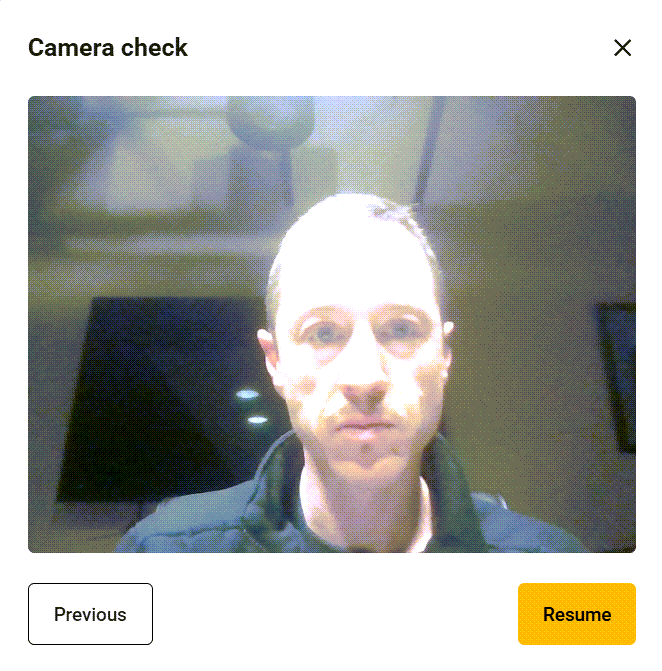
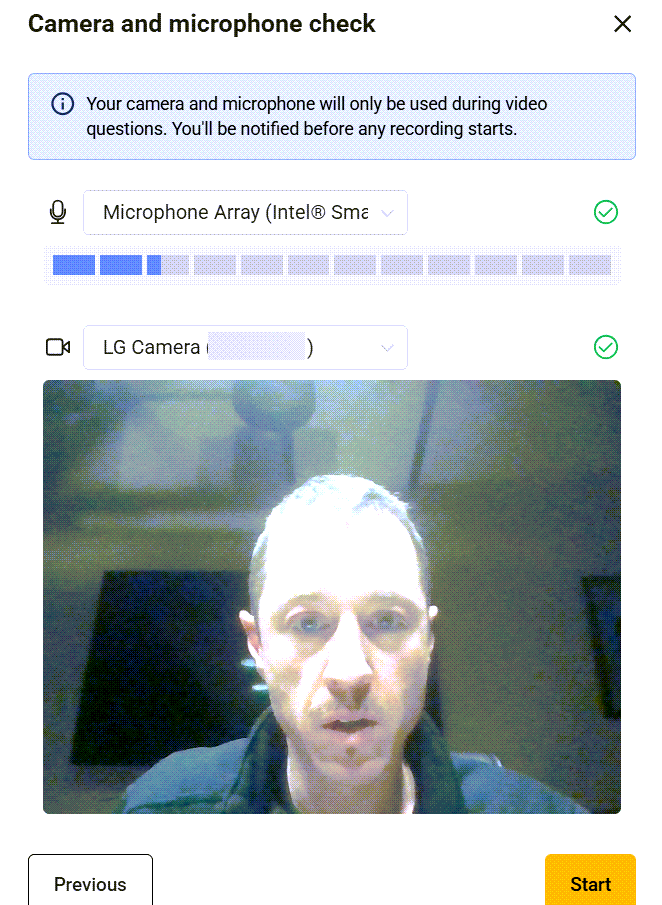
Authorizing your webcam or audio device
- Browser permissions: When prompted to turn on your webcam or audio device, your browser will request permission to access it. Click on “Allow” or “Grant” to authorize the device(s) for the test.
- Device settings: If you’re using an external webcam or have multiple cameras or audio input devices connected to your computer, ensure that the correct one is selected in the test interface. You can usually adjust this in the settings or preferences section.
Troubleshooting
If you have trouble enabling your webcam or microphone, you can perform the following checks:
- Permissions: Check your browser settings to ensure that it hasn’t been blocked or disabled for the website. You can usually manage these settings in the browser’s privacy or security preferences.
- Browser compatibility: Ensure that you are using a supported browser for the test. If you encounter issues with the webcam or audio feature, try switching to a different browser such as Google Chrome, Mozilla Firefox, or Microsoft Edge.
- Device connectivity: If your webcam or audio device is not being detected, ensure that it is properly connected to your computer. Try unplugging and re-plugging the device or restarting your computer if necessary.
- Update drivers: Make sure that your device drivers are up to date. You can usually update them through the device manager or by visiting the manufacturer’s website for driver downloads.
- Restart browser: Sometimes, simply refreshing the browser or restarting it can resolve audio and video issues. Close all browser windows and reopen the test link to see if the device functionality improves.
- Firewall and antivirus: Your firewall or antivirus software may be blocking access to the device. Temporarily disable these programs and see if the device works. Remember to re-enable them after the test.
- Simultaneous use: Ensure that your device is not being used by any other applications simultaneously. Close any other programs that might be using the device, such as video conferencing apps or virtual meeting software.
Data privacy for webcam proctoring
Your privacy is important to us. The snapshots captured during the test will be stored securely for a maximum of 90 days, after which they will be automatically deleted. For more information on how we handle your data, please refer to our privacy policy.
Additionally, please note that the privacy policy of the recruiting company conducting this test also applies. We recommend reviewing their privacy policy for further details on data handling and security measures.