AI Tools for Screen
Last updated on • Disponible en Français
✅ Your account administrator can make AI Assist available in tests by default in the Test Template settings. You can also turn this feature on or off for an individual test in the test’s Settings under the General tab.
ℹ️ AI Assist is only available for Project questions.
Y
- GPT
- Claude
- Gemini
- Llama
To use it, simply click on the AI Assist window, select your language model and context, and enter your prompt.
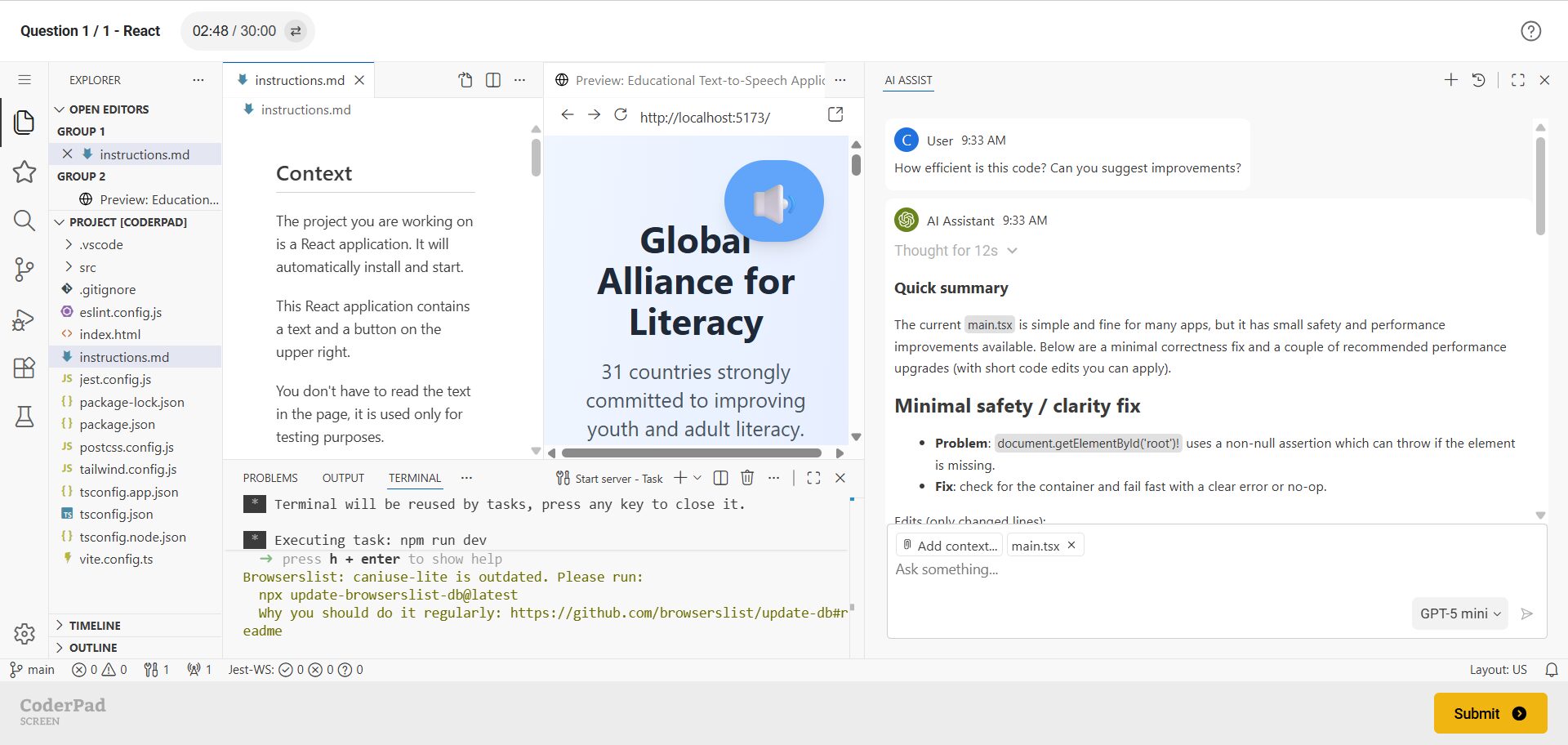
This feature is particularly useful for candidates to showcase their prompt engineering skills so you can see how they utilize this new technology in a realistic environment.
✅ All of the candidate’s prompts and AI output will be saved for review in playback for the question within the detailed test report.
Include Code in Context
To further understand a candidate’s ability to use generative AI, you can also add context in the AI Assist window.
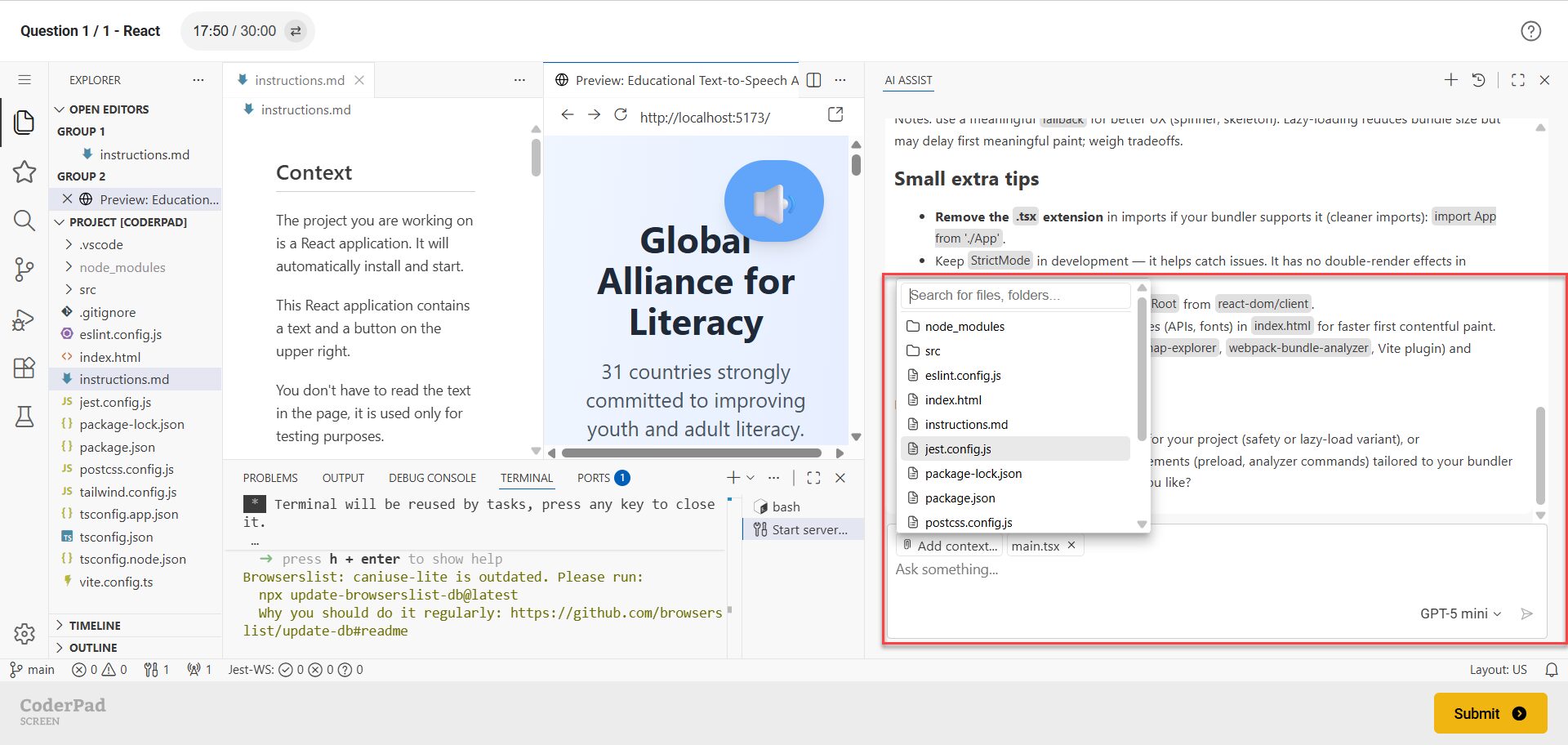
This allows CoderPad’s AI assistant to read the code in the IDE, similar to tools like GitHub Copilot or Cursor.