menu Documentation menu

Candidates dashboard

Last updated on Disponible en Français

✅To access the Candidates feature, you will need permissions to the Candidates dashboard from your account administrator.

Candidates will let you see all a summary of your candidates and tests from the time your account was created to the present.

To access it click on Candidates in the left nav menu. 
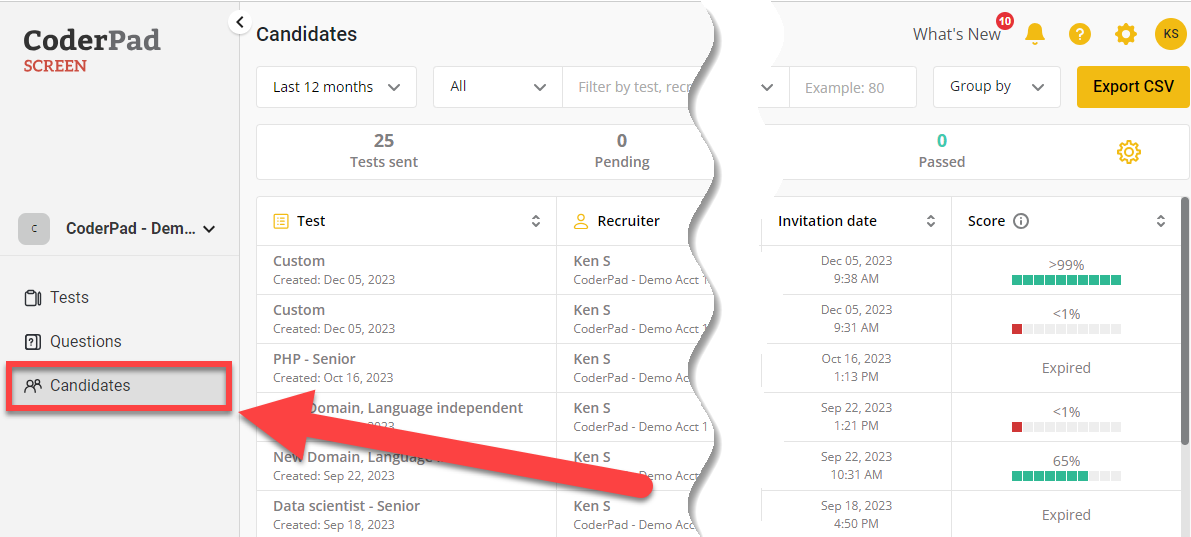
There is an arrow pointing to the "candidates" option in the left nav menu.

You will land on the Candidates page. In the summary bar you’ll a variety of metrics associated your candidates and their completion (or lack thereof) of your tests:

Screenshot of a “Candidates” dashboard showing filter controls (date range set to “Last month,” status set to “All,” search bar, score filter, and group by dropdown) and an “Export CSV” button. Summary metrics display: 73 Candidates, 10 Pending, 31 Completed, 5 Rejected, 3 Passed, 12 Expired, 9 Abandoned, 1 Rejected emails, and 55 To review. Notification icons and a user profile icon appear in the top right.

You can order your tables by a test name, recruiter’s name, candidate’s name, invitation date, or comparative score. 
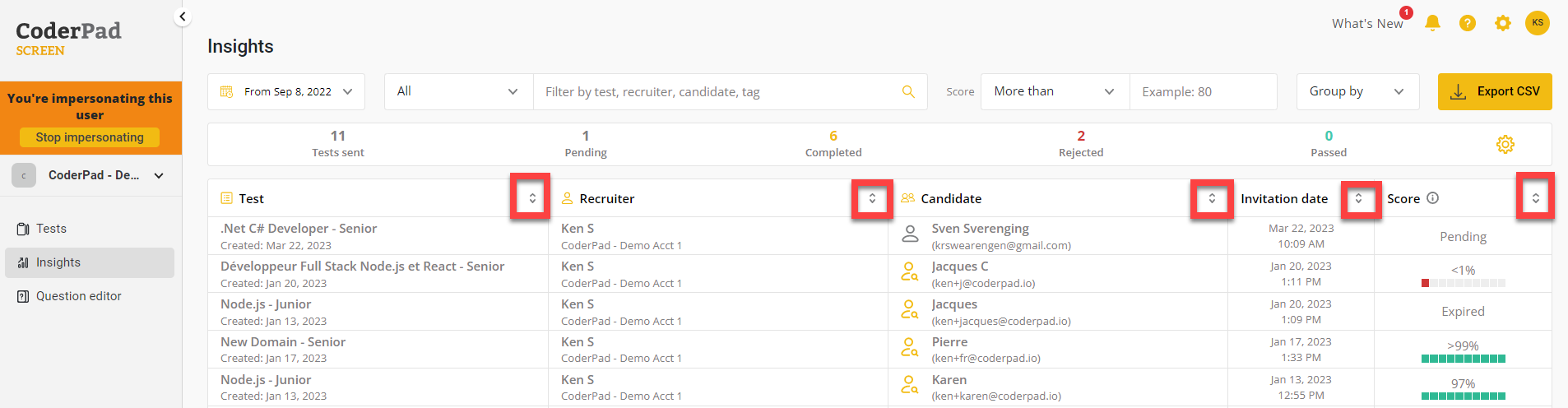
The test lists with the ordering buttons highlighted for the test, recruiter, candidate, invitation date, and comparative score columns.

Each line is clickable and will open the selected candidate’s test report for easy management.

Here is how to sort your data: 

  • By date: The farthest you can go back is your account’s creation date.
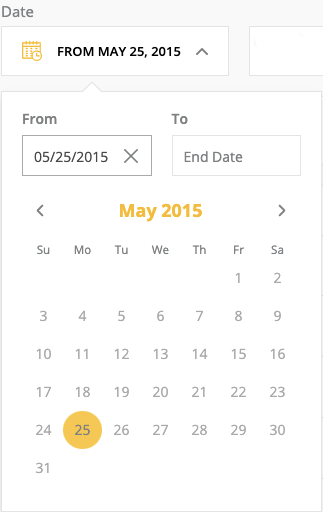
A calendar with the a date selected.
  • Filter by: Here you can specify the field and the category. 
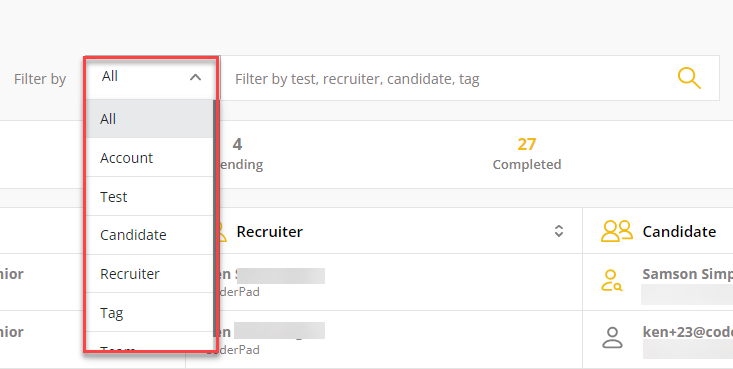
Drop down list is shown with all, account, test, candidate, recruiter, tag, and team options.
  • Score: Filters your candidate by requested score.
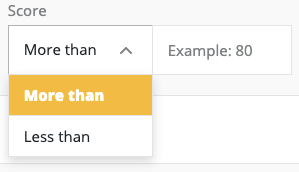
The score filter shown with the "more than" and "less than" options displayed.
  • Group by: Filters your statistics per test/recruiter/month.
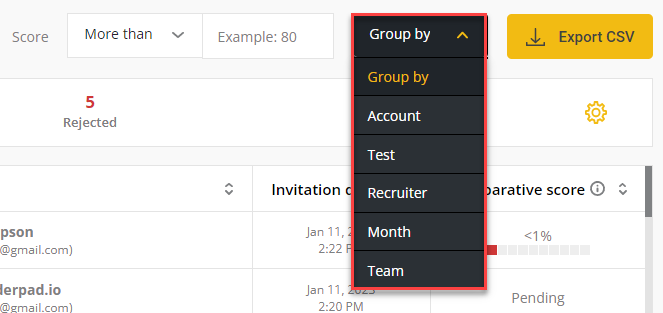
The "group by" option shown with the test, recruiter, and month options displayed.
  • Test: Displays your details per test, with each line breaking down your data per test. 

a test row with the test name and number of tests sent, pending, completed, rejected, and passed fields displayed.
  • Recruiter: Displays one row per account user. 

a recruiter row with the recruiter name and number of tests sent, pending, completed, rejected, and passed fields displayed.
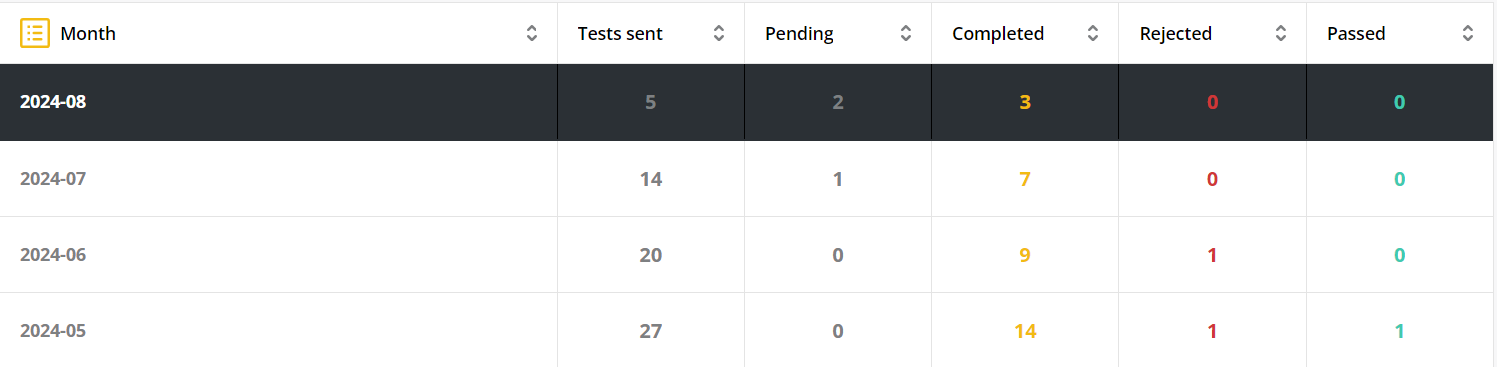
  • Month
a month row with the month and year and number of tests sent, pending, completed, rejected, and passed fields displayed.
  • Teams: Displays one row per team.
a team row with team name and number of tests sent, pending, completed, rejected, and passed fields displayed.

And if you need to, do not forget you can export this information as a CSV file:
"export csv" button